Premium TPO indicator · MetaTrader 5

MarketProfileComplete

Explore the session's TPO structure. Compare profiles across sessions, or bring a selected profile beside M30 candles in a dedicated chart workspace.

Access
Premium · MQL5 rental
Version
1.16
Profile type
TPO · Session profiles
Platform
MetaTrader 5 desktop

Two ways to read the session

A profile workspace.
A price-and-profile view.

The on-chart controls let you change the presentation while keeping the selected session in context.

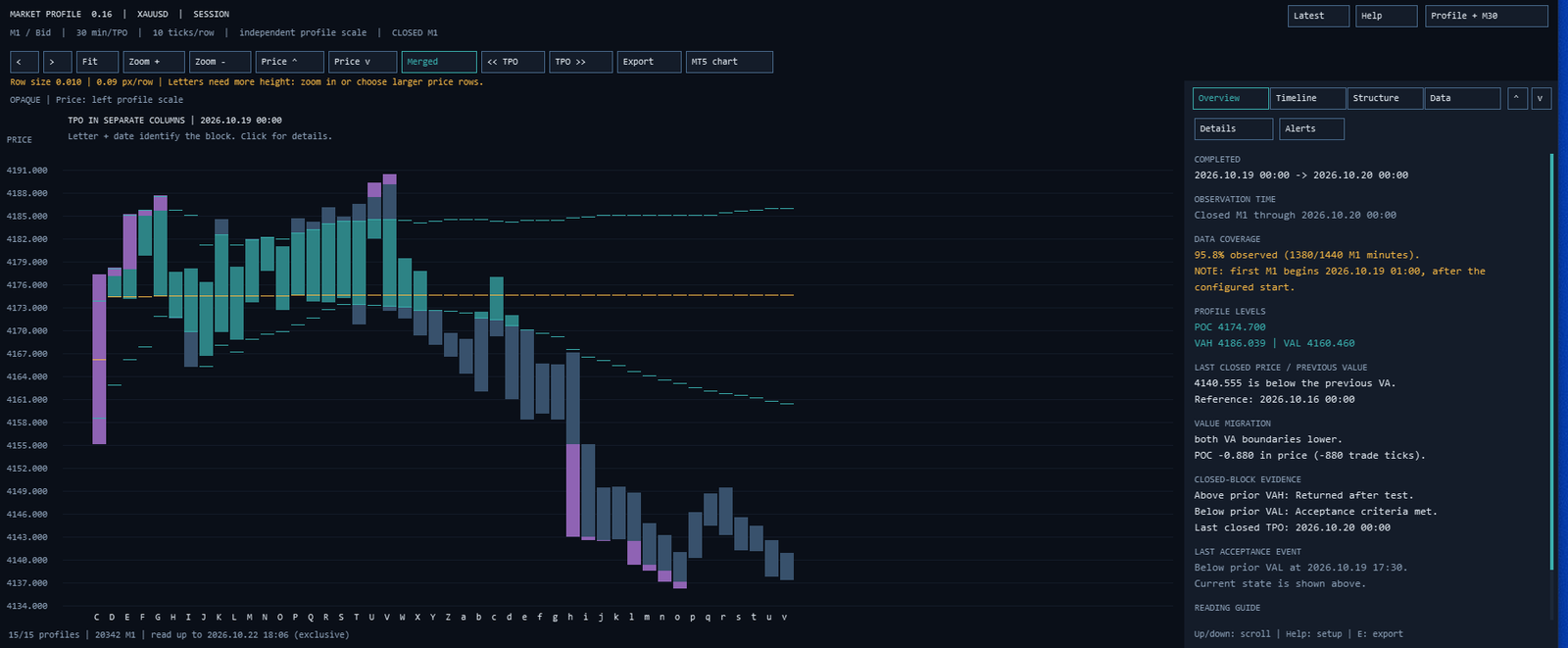
Multi-profile workspace

Compare the distributions.

See several session profiles together. Compare their ranges, POC and value areas, and inspect how the location and shape of value change from one session to another.

Use the profile navigation to explore loaded history. The TPO columns view adds the chronological sequence of time brackets when you want to inspect how a profile developed.

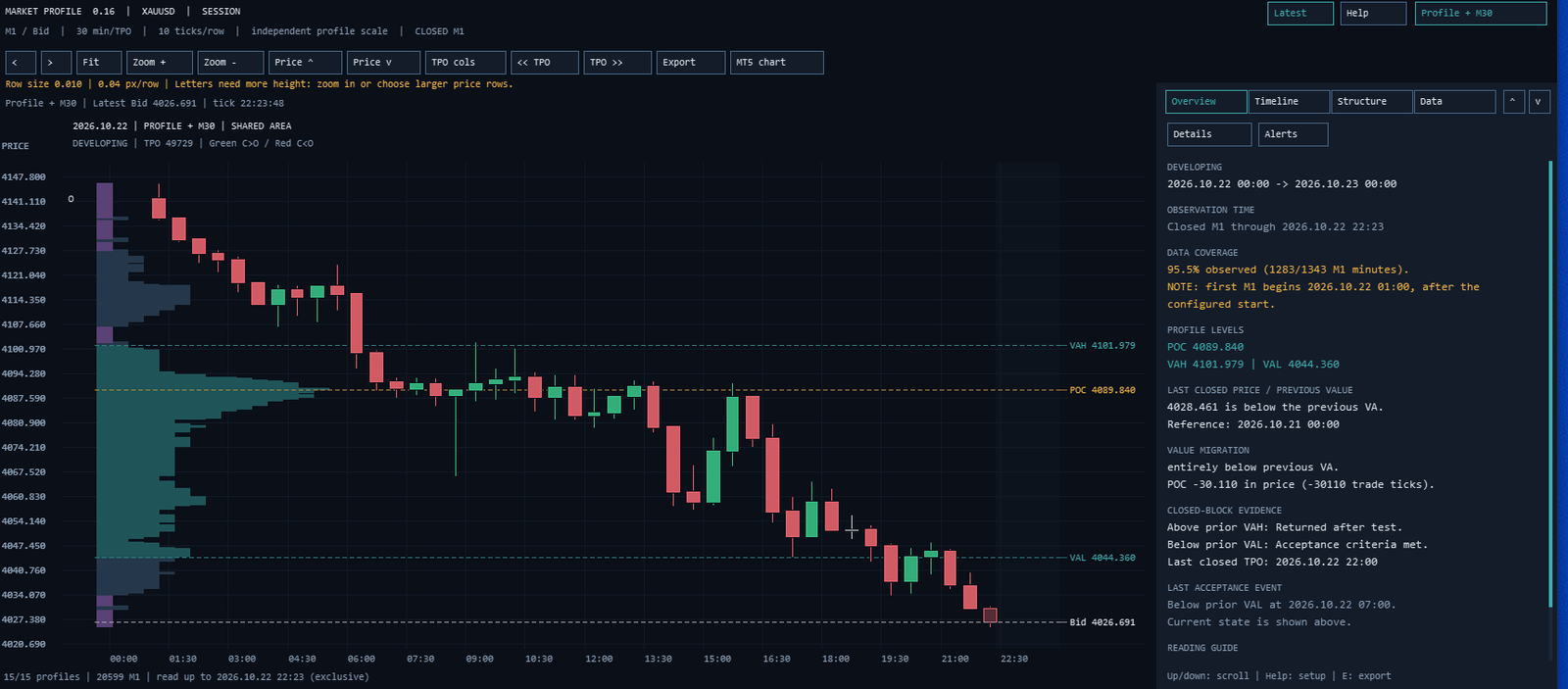
Profile + M30

Connect the profile to price.

Bring the selected daily session together with M30 candles. Follow the relationship between price, POC, value-area boundaries and Initial Balance while keeping prior-session references in view.

This mode is available for session profiles. The candles in this workspace remain M30 even if the underlying MT5 chart uses another timeframe.
On the chart

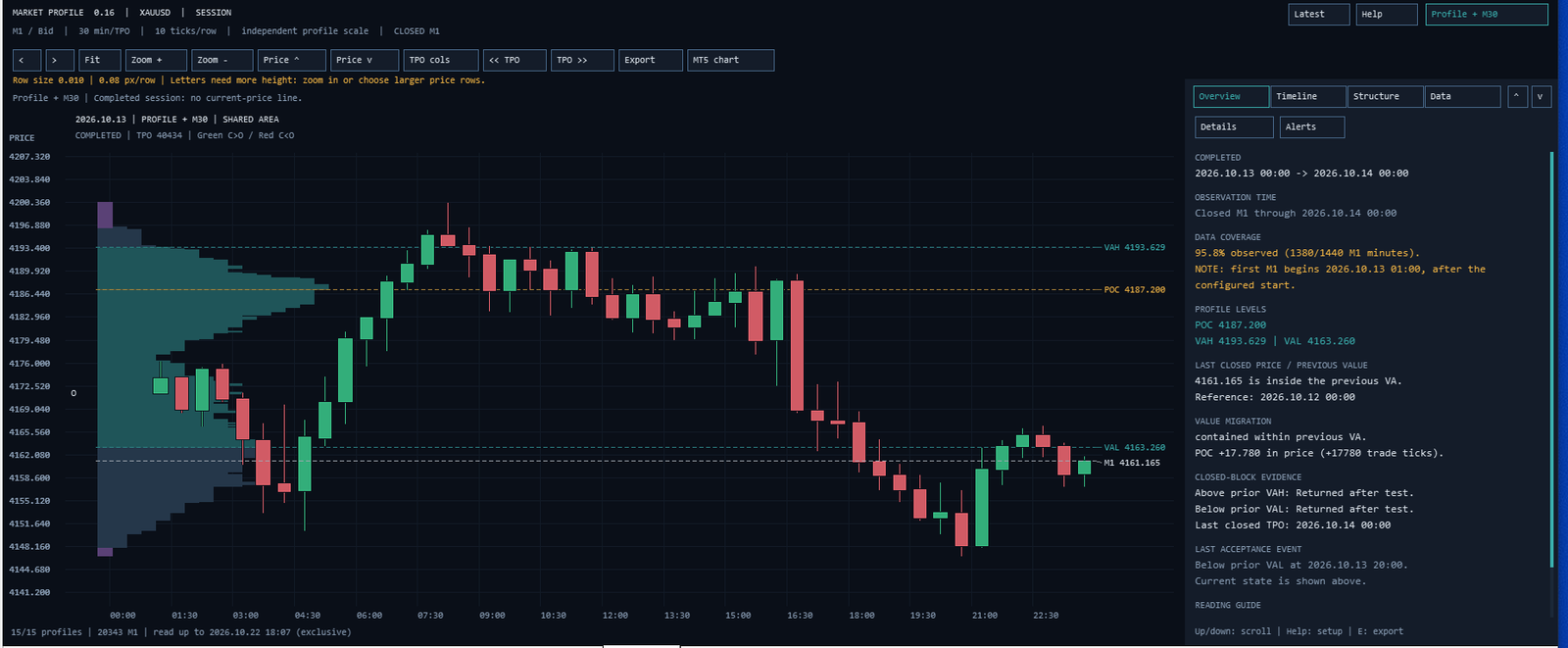
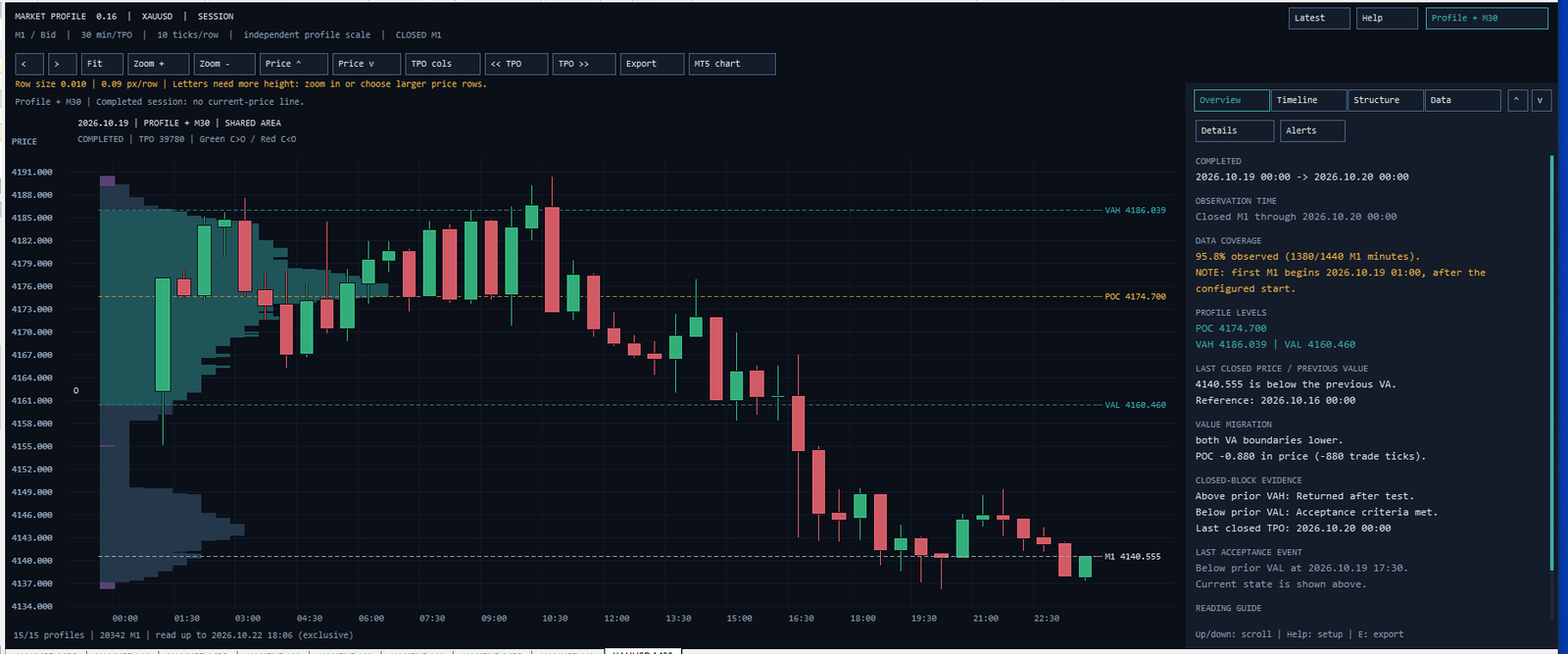
Explore the display.

Historical chart examples supplied by QuantLume. Select an image to inspect the full-size view, then follow the practical guide for the controls and reading process.

What you can explore

Profile context, under your control.

Read the display and use the controls to focus your own analysis.

Two main workspace views

Compare multiple profiles, or use Profile + M30 for a selected daily session beside M30 candles. Switch views from the on-chart interface.

TPO and value references

Read TPO profiles with POC, VAH, VAL and Initial Balance. Inspect chronological TPO columns when the sequence of time brackets matters.

Session context

Explore the selected session through Overview, Timeline, Structure and Data. Move between summary and detailed reports.

History and display controls

Select loaded profiles, return to Latest, fit or zoom the display and pan the price window. Keep the selected session visible while you inspect it.

Review and export

Use the AsOf setting for a historical cutoff and export the selected analysis for your own records. The guide explains the difference between historical and live review.

Optional notifications

Configure supported event categories and delivery settings. Alerts provide context for review; they do not place or manage trades.

Premium access

One indicator. Three rental periods.

Each period gives access to the same MarketProfile Complete product. Longer periods have a lower equivalent monthly cost.

MQL5 rental

1 month

45 USD

Total for 1 month of access

  • MarketProfile Complete for MT5
  • Same indicator for every rental period
  • License and installation through MQL5
Rent on MQL5
MQL5 rental

6 months

250 USD

Total for 6 months of access

  • MarketProfile Complete for MT5
  • Same indicator for every rental period
  • License and installation through MQL5
Rent on MQL5
MQL5 rental

1 year

450 USD

Total for 12 months of access

  • MarketProfile Complete for MT5
  • Same indicator for every rental period
  • License and installation through MQL5
Rent on MQL5

MarketProfile Complete prices in USD. The 6-month total saves 20 USD compared with six 1-month periods; the 1-year total saves 90 USD compared with twelve 1-month periods. Review the final price and terms on MQL5 before payment. MarketProfile-Engine is a separate product.

Installation

From MQL5 to the workspace.

  1. Open the official MarketProfile Complete listing by Ahmed Nori using the MQL5 button on this page. Review the current rental period, price and requirements.
  2. Complete the rental with your MQL5 account, then sign in to the same account in MetaTrader 5 desktop under Tools → Options → Community.
  3. Install the product through the terminal's Market / purchased-products area. Find it in Navigator → Indicators → Market and attach it to the chart for your chosen symbol.
  4. Load sufficient M1 history, review the session times in broker-server time, and allow the workspace to finish loading. Open Help in the indicator before changing the display.

Menu locations can vary with the terminal build. Official MT5 Market installation help ↗

Data & limitations

Know what the profile represents.

  • This is a time-based TPO indicator. It does not measure exchange volume, footprint transactions or verified aggressor order flow.
  • The workspace needs usable broker M1 history. Broker data, session times, the price-row setting and loaded history affect the profiles shown.
  • Session settings use broker-server time. There is no automatic conversion to an exchange timezone or automatic daylight-saving adjustment.
  • The current session develops as new data arrives. Completed profiles can also differ after broker-history corrections or setting changes; historical screenshots do not establish exactly what was visible at an earlier moment.
  • Data-coverage messages help identify limitations but do not prove that the source history is complete. Missing minutes may reflect market closures, broker breaks, no ticks or unavailable history.
  • Profile + M30 is available for session profiles. The workspace candles remain M30 regardless of the underlying MT5 chart timeframe. Weekly and monthly profiles use the profile workspace.
  • The AsOf cutoff remains active until changed in Inputs. Latest selects the newest loaded profile; it does not switch a historical cutoff back to live mode.
  • MarketProfile Complete is a visual analysis tool. It does not execute trades, provide guaranteed signals or establish profitability. Notifications and historical examples require your own interpretation.

A practical guide to the workspace

Learn the two views, session selection, display controls, profile references, historical review and common setup checks.

Read the MarketProfile Complete guide →

Historical examples explain the display; they are not trade recommendations or evidence of profitability. Read the risk disclosure.